Off-White Accessories: Verify Coupon Stacking Before Paying
When buying [off white](https://fashion-reps.net/brand/off-white) [accessories](https://fashion-reps.net/accessories), whether a coupon can be used with a combined order isn't something you can tell just by looking at the reference price or promo copy on the product page. What you actually need to confirm: the coupon's claim conditions, validity period, applicable regions, order threshold, excluded items, and the final result shown on the checkout page before you submit your order. This article
- Published
- Editors
- Nathaniel Brooks · Editor-in-Chief and Founder
- Record updated
- Editor score
- 4.2 / 5
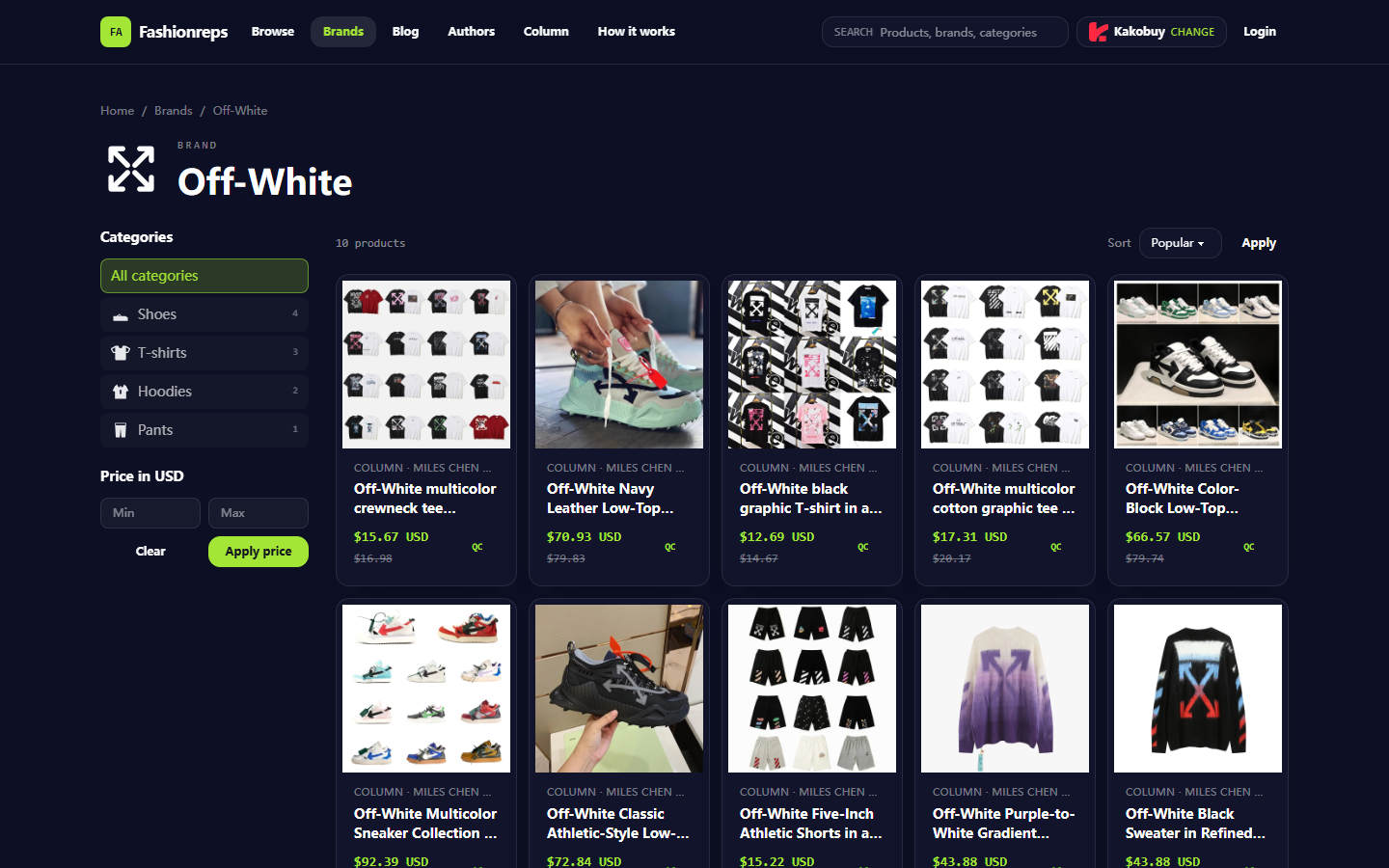
When buying off white accessories, whether a coupon can be used with a combined order isn't something you can tell just by looking at the reference price or promo copy on the product page. What you actually need to confirm: the coupon's claim conditions, validity period, applicable regions, order threshold, excluded items, and the final result shown on the checkout page before you submit your order. This article is for buyers who plan to put multiple accessories into one order but aren't sure if the discount will apply. After reading, you can follow the same recording method to verify your order; if the coupon terms are incomplete or the checkout prompts are inconsistent, you should pause payment and keep evidence. 🔎

Define the specific decision for using a coupon on an off white accessory combo
First, phrase the question as a verifiable decision rather than simply looking for an "off white coupon." The goal of this check is to determine: whether the target accessories can be combined into one order, whether the coupon applies to these items, and whether the checkout page clearly shows the discount has taken effect before you submit the order.
Before starting, record the following:
- Name or page identifier for each item you plan to buy
- Specs, color, and quantity currently shown for each item
- Price or price range shown on the product page at that time
- Coupon name, claim entry point, and terms you plan to use
- Region, currency, and shipping method selected at checkout
- Whether the checkout page shows a discount amount, amount due, or other conditional prompts
This page does not directly confirm any fixed discount, coupon code, or savings amount. If the page does not publicly show full coupon terms, don't treat the product page's reference price, historical price, or banner text as an available discount. 🧾
Go back to the fashionreps product page to check each accessory's name, specs, and page status
The brand page on fashion-reps is for discovering products and viewing the information visible on the page; orders, payment, and shipping need to be completed on the external shopping agent website you choose. Therefore, the reference price on the product page cannot replace the final quote on the external checkout page.
After opening the target product page, check each item:
- Is the product name indeed the accessory you want to buy, rather than shoes, clothing, or another category under the same brand?
- Does the page show selectable colors, sizes, styles, or quantity limits?
- Is the page still accessible, and are the product name and key specs visible?
- Does the page show any prompts for out of stock, invalid, variant unselectable, or needing external confirmation?
- After entering the shopping agent, do the product title, specs, and quantity match the original page?
Don't assume multiple items with the off white name are all part of the same promotion just because they share the name. Brand affiliation, product category, and promotion scope are three separate judgments. If the product page status changes, rely on the page as it appears when you're ready to order.
Record coupon claim conditions, validity period, applicable regions, and order threshold
Coupon verification must be based on the currently visible official coupon terms or checkout page instructions. When full terms are missing, record only "to be confirmed" and don't add speculative explanations.
At least check the following:
- Claim method: whether login, manual claim, completing a specific task, or obtaining on a designated page is required
- Usage period: start time, end time, and whether it's calculated in the timezone shown on the page
- Order threshold: based on item amount, discounted amount, tax-inclusive amount, or another amount
- Applicable regions: restricted to certain countries, regions, warehouses, or shipping routes
- Applicable currency: whether the coupon amount or threshold is valid only in a specific currency
- Scope: limited to accessories, designated items, designated stores, or designated events
- Exclusions: whether sale items, combo items, shipping, taxes, or some brand items are excluded
- Usage limit: any restrictions per account, per order, or per event period
- Validity status: still within validity after claiming, already used, or expired
If this information appears only in images, pop-ups, or scrolling prompts, save both the coupon screenshot and the page text. Screenshots should cover account information, addresses, order numbers, and payment info; don't expose complete personal data. 🔐
Check whether accessory category, combo items, and excluded items affect usage
A common misunderstanding with combined orders is thinking "items can be added to cart together" means "discounts can be used together." Cart merging only means the system allows temporarily placing them in one order; it doesn't prove all items meet the discount conditions.
Check in the following order to rule out issues:
- First view each accessory separately to see if there's a promo tag or special price.
- Then confirm whether the combo item is recognized by the system as a single independent item.
- Check if the category name in the coupon terms matches the actual classification on the product page.
- Confirm whether the threshold calculation includes all target items or only the eligible portion.
- Note whether shipping, service fees, insurance, taxes, and agent handling fees are excluded from the discount.
- If the order includes multiple categories, record separately which items count toward the discount threshold.
Don't infer the discount scope from brand name, item quantity, or page order. Only content clearly shown on the coupon terms or checkout page is suitable as the basis for checking the current order. ⚠️
Compare checkout prompts without coupon, single use, and combined order separately
To identify whether the discount really takes effect, create three comparable check scenarios. Keep the shipping region, currency, shipping route, and quantity settings consistent in each scenario; otherwise the results can't be directly compared.
| Check Scenario | What to Record | What Can Be Confirmed |
|---|---|---|
| Without coupon | Item subtotal, shipping, taxes or other visible fees, final amount due | Base checkout prompt under current conditions |
| Single item or single combo use | Selected item, coupon status, threshold prompt, discount amount, final amount due | Whether the discount applies only to specific items or combos |
| Combined order use | All items, quantities, eligible items, discount status, final amount due | Whether the discount is retained, reduced, or removed after combining |
If the checkout page only shows "selected" or "available" without a clear discount amount or change in final amount due, don't record it as saved. Continue to the next page to see if full fees are shown; if there's still no clear result before payment, keep it as "discount status unconfirmed."
In the meantime, avoid calculating the amount due by subtracting a certain percentage from the reference price yourself. Product prices, exchange rates, shipping fees, and agent fees can all change; only the result shown on the target site's current checkout page can be used for this order. 📋
Record only visible discount results on the target site; don't calculate fixed discounts or savings amounts
The focus of this check isn't to compute a nice-looking discount, but to confirm whether the page gives clear enough checkout evidence. Use the following statuses when recording:
- Available shown: coupon terms complete, and current order meets the conditions explicitly listed on the page.
- Applied pending review: checkout page shows discount applied, but final amount due and applicable items still need checking.
- Claimable only: coupon can be claimed, but whether the current order qualifies is not yet confirmed.
- Not applicable: page clearly states current item, region, order, or time doesn't meet conditions.
- Unconfirmed: missing coupon terms, discount amount, or final checkout prompt.
If the product page and external agent checkout page use different currencies, don't directly compare the numbers. Record the currencies separately and note whether you're comparing item subtotal, total fees, or final amount due. When there's no verifiable coupon or discount, the most accurate conclusion is "currently cannot confirm a discount exists" rather than providing an estimated savings amount.
How to keep evidence and pause when coupon terms are missing or stacking rules unclear
When conditions are incomplete, coupon terms and checkout page don't match, or the discount suddenly disappears after order confirmation, pause payment first. Keep the following evidence to support later review:
- Product page screenshot, including product name, specs, and status at that time.
- Coupon page screenshot, including coupon name, validity, threshold, and scope.
- Cart screenshot, including items, quantities, and combo status.
- Checkout page screenshot, including discount status, fee items, currency, and final amount due.
- Date of check, shipping region, shipping route, and selected shopping agent.
Before taking screenshots, cover name, address, phone, order number, payment card info, and other account credentials. Don't repeatedly submit payment to test the discount, and don't test rules by splitting orders, under-declaring, or bypassing regional restrictions. If discount rules remain unclear, ask the shopping agent customer service that actually processes the order and keep their written reply.
Coupon and order combo pre-purchase checklist
Check each item before paying:
- [] Name, specs, quantity, and page status of each target accessory recorded.
- [] Selected shipping region, currency, and shipping route unchanged.
- [] Coupon claim conditions, validity, threshold, and scope visible.
- [] Accessory category, combo items, and excluded items checked.
- [] Three scenarios compared: without coupon, single/single combo use, combined order.
- [] Checkout page clearly shows discount status and final amount due, or marked as unconfirmed.
- [] Shipping, taxes, service fees, and other fees not mistaken for product discount.
- [] Screenshots cover personal info, and check date recorded.
- [] Any unclear conditions, conflicting prompts, or disappearing discount caused payment pause.
Using a combined order may reduce visible fees in the order when the discount genuinely applies to all or some eligible items; the added risk is that combining may trigger new thresholds, exclusions, or fee structures, and discount results cannot be calculated solely from product page prices. A good fit for combo checking: buyers planning to buy multiple accessories and able to check checkout prompts one by one before paying. It's not recommended to rely on so-called stacking discounts when coupon terms are missing, regional applicability is unclear, item status changes, or the final amount due isn't clearly shown.
Community feedback (5)
Reader score 3.6 / 5 (5 ratings)